

Contacts and Customers
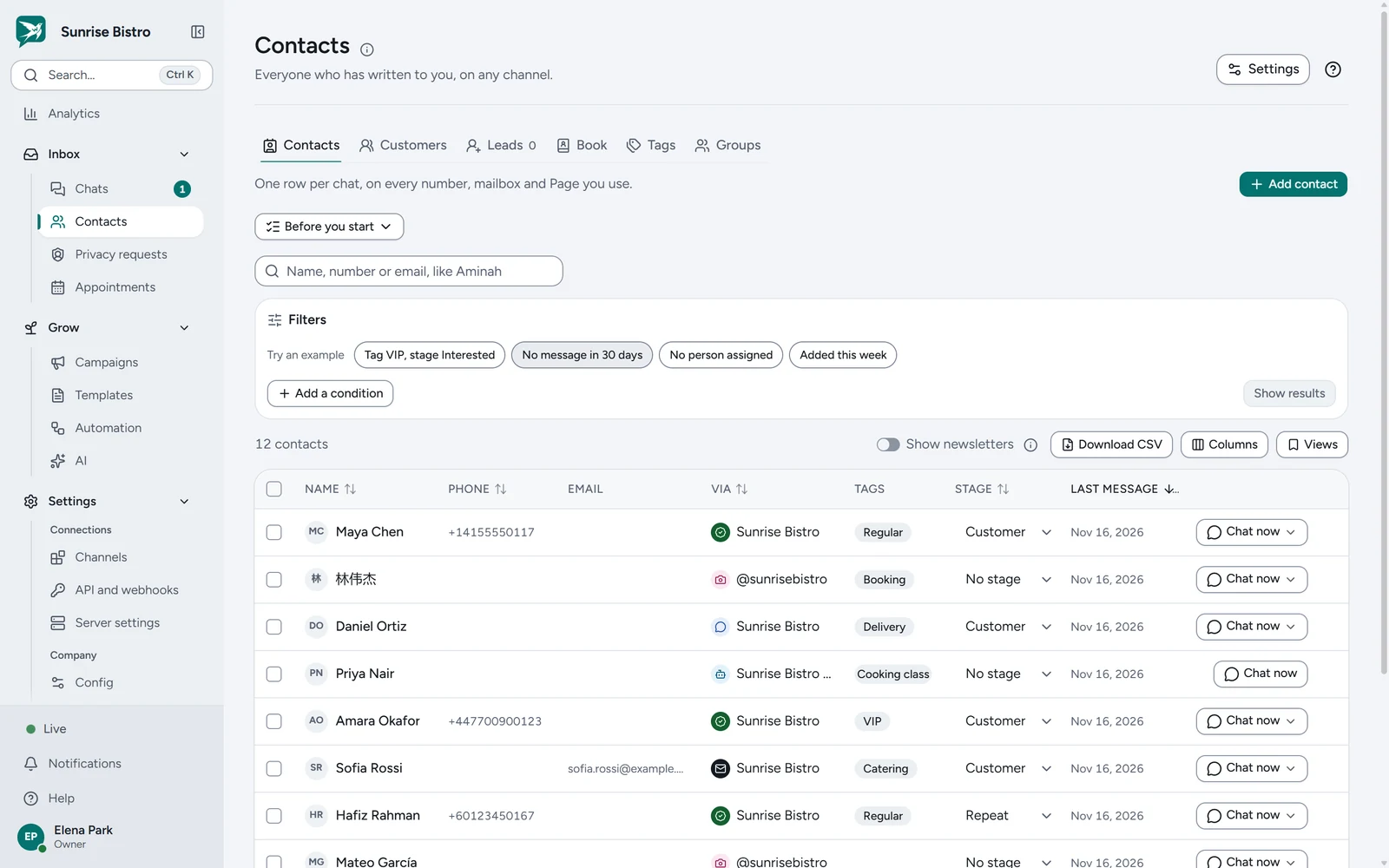
On the Contacts page, the first two tabs cover your whole business, on every plan, the trial and Solo too. Contacts has one row per chat, on every number you use. Customers has one row per person: the same person on WhatsApp, Messenger and Instagram, linked into one customer, with their channels side by side. Leads, Book, Tags and Groups after them each show one channel, picked at the top of the tab.
Press Filters and Add a condition, for example Has any of these tags VIP and Lifecycle stage Interested. Choose All conditions or Any condition, then press Show results. Try an example fills one in for you. A filter takes up to 20 conditions, and an unfinished one is outlined in red.
Columns picks what the list shows, custom fields too, and only you see this choice. Views keeps a filter with its sort and columns: press Save this view and give it a name, for example VIP buyers. Share with the team needs Inbox settings: change. You can keep 20 views of your own, and your business 50 shared ones.
Link the same person
Welkai suggests two accounts that may be one person when they share a phone number, or an email saved in a field named phone or email. It never matches by name. So when a flow asks for a phone number or an email, save the answer to the field named phone or email.
A linked customer shows once in Customers and has one lifecycle stage. In Chats, the contact panel shows their Other accounts and Past conversations. Someone who does not use one of those numbers reads only "1 more account on a number you don't use", never a name.
- Open Customers. Suggested links lists pairs with why, for example "Same phone number +60 12-345 6789".
- Press Link, pick the Name to keep, and the stage to keep when theirs differ (the one furthest along is picked for you). Press Not the same so a pair never comes back.
- To link by hand, tick two or more chats of the person on different numbers or channels in Contacts, then press Link as one customer.
- Open a customer in Customers to see every account, with Open chat on each. Unlinking an account makes it stand alone again with its stage.
Lifecycle stages
A stage says how far a customer has come. You start with New lead, Contacted, Interested, Customer, Repeat and Lost. Set it in a row of either list, for many contacts at once, or in a flow with the Set lifecycle stage step. Every linked account of the customer gets the same stage.
The Stages button at the top of the page renames, adds, moves and removes stages, up to 12, for people with Contacts: change many. Renaming keeps every contact on the stage. Removing a stage that contacts still have lists them, for example "Lost: 3 contacts", and only Clear and save takes it off them. The Analytics card Leads to customers counts contacts whose stage became Customer or Repeat.
Change many at once and download
- Tick rows in Contacts. To take every match, tick the box at the top of the page, then press Select all for the matching contacts. One bulk change takes up to 20,000 contacts.
- Pick Tags, Set stage, Assign, Start a flow, Add to a broadcast or Delete. You see the ones your role allows: Start a flow needs Flows: publish. Each asks first and says how many contacts it changes.
- The progress sheet counts Done, Skipped and Failed, with why each one was skipped. Closing it does not stop the change.
- Download CSV saves every contact matching the filters, up to 20,000, with your columns and headers in your language. It needs Contacts: download.