

Statuses and views
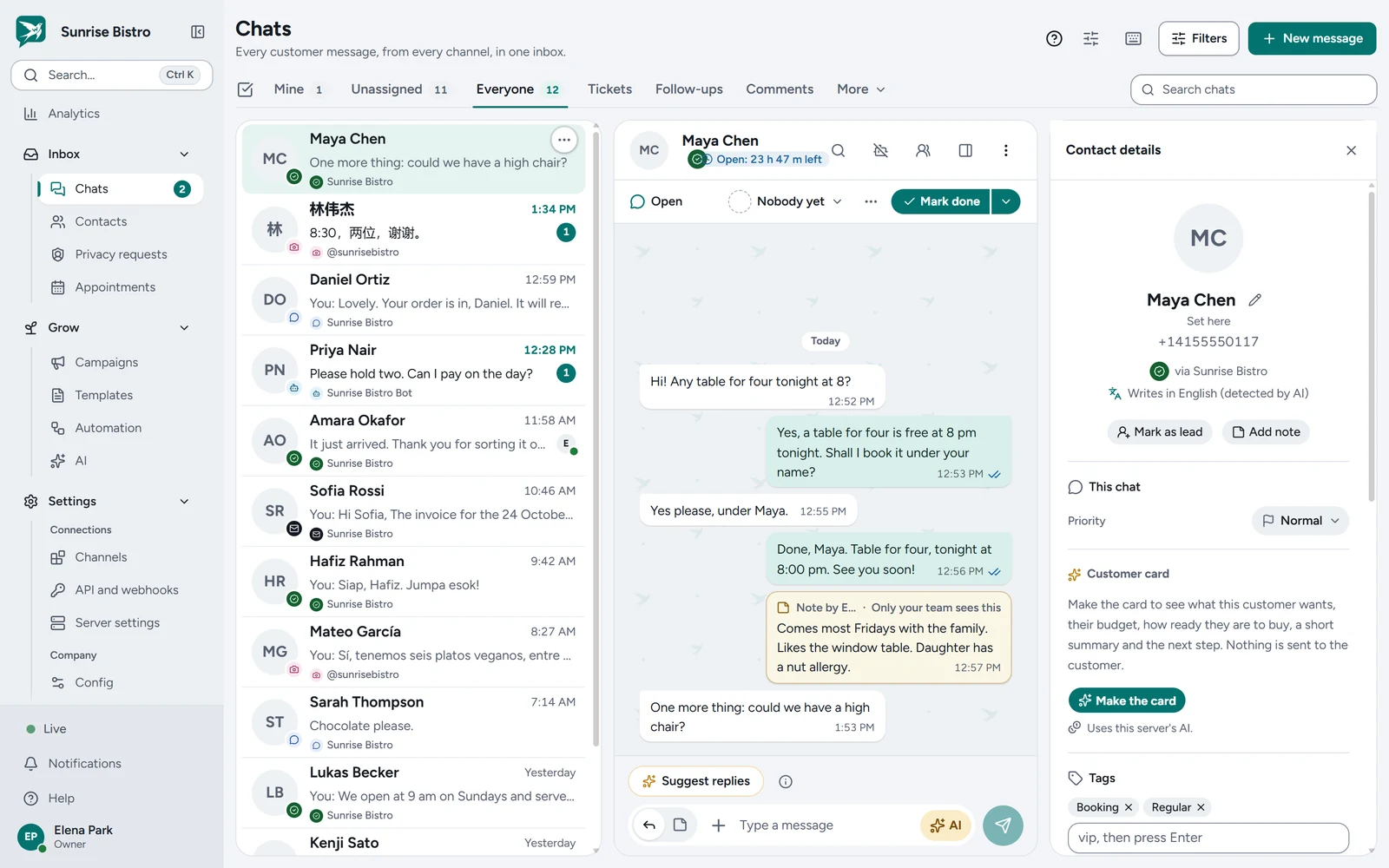
Each customer chat in Chats has a status. Open: a person should answer. With the bot: a flow, the AI or an auto-reply is answering, so nobody is needed yet. Snoozed: put aside until a time, then Open again, or sooner if they write. Done: finished, and their next message starts a new conversation. Group chats have no status and nobody holds them.
The tabs above the list pick which chats you see: Mine, Unassigned (nobody has taken them yet), Everyone and, with Team inbox, Mentions (chats where a teammate wrote @ and your name in a note). Leads lists chats with your leads (people who messaged you for the first time), and Groups your group chats, newest first; Groups shows while a channel that has groups is linked (a WhatsApp number linked with a QR code, a Telegram account or a Telegram bot), and its count is the groups with unread messages. Your teams and saved views show as tabs too; when there are several, or the row is full, they go under More, listed under Teams and Saved views. Filters shows Open chats until you pick another status, or Any. If you use more than one number, All my channels lists the chats of every number, Page and mailbox you may use, and opening one switches to its channel; the same menu can also show one kind only (all Email chats, for example). Personal lists chats you marked Personal: they stay out of the support lists, counts and unread badges.
To keep a set of filters, press Save filters as a view (beside the tabs, or in More) and give it a Name, for example Unpaid orders. Share with the team shows it to everyone in your team, and each person still sees only the chats they may see. A role without Chats: see every chat sees, on its numbers, the chats it holds, its teams' waiting chats and Unassigned ones.
In Filters, Sort changes the order: Newest first, Waiting longest or Most urgent (Urgent first, then High, Normal and Low; in each, whoever has waited longest). Under Show only, pick Late for chats past a response-time target, or one Priority. A saved view keeps them. When the business has an AI teammate, the AI tab lists the chats an AI teammate is answering now.
Share the work: teams and new chats
Teams, New chats and giving chats to other people are part of Team inbox, on the trial and on Plus and above. It is free. On Solo only the Owner opens Chats, and keeps everything one person needs: statuses, snooze, topics, notes, saved replies, their own saved views, search, export, keys, merge and block.
In a flow, Hand over to team gives the chat to The number's team, One person, One team or Take turns, then waits until someone marks it done (24 hours unless you change Wait up to). Team inbox action gives the chat to someone, adds a private note or a topic, or changes the status. Both run on WhatsApp, Messenger and Instagram.
- On Team, invite at least 2 people who can reply, give them your numbers, then open Teams.
- Press New team. Fill Name (for example Sales), tick the People and choose How new chats are shared: Take turns (each person has a share from 1 to 10), Least busy first or People pick. Under Limits, 0 means no limit. Read What happens next, then press Save team.
- Open New chats and pick a team for each number or page. Until you do, its new chats wait in Unassigned (Nobody yet). A customer who writes again goes back to the person who helped them last, unless that person is Offline or can no longer take it.
- Everyone picks their availability with the switch in the menu on their picture: Online, customer support chats can come to you; Busy, keep your chats, no new customer support chats; Offline, no customer support chats come to you. When nobody is Online, chats wait in Unassigned (flows, AI and out-of-hours replies still answer), and the oldest go out first as soon as someone comes Online.
Work a chat
The header strip shows the status, who has the chat, its topics and the faces of teammates looking at it now ("Aminah is viewing"). Small lines in the thread say what happened and why, for example "It was their turn in Sales." or "Ben is offline, so it went to Sales."
An Open chat with a response-time target from Inbox settings shows a chip on its row and in the header strip. It is grey while there is time, for example "25 min" (the header strip says "Reply in 25 min"), amber once the reply is almost due, and red "Late 12 min" once the time has passed. It counts the first reply until a person answers, then the time to finish. Snoozed chats and chats With the bot show no chip.
Every chat has a priority: Urgent, High, Normal or Low. New chats start at Normal. Change it with the priority button in the header strip, or press P. The list flags High and Urgent chats.
The face menu also lists the AI teammates that answer on this number: pick one to give it the chat, and the header strip shows "Mira (AI teammate)". When the customer rates a finished chat, the header strip shows five stars and "Rated 4 out of 5".
A chat where the customer asked for a live agent has a ticket: its number, for example #12, shows on its row and in the header strip, with a panel saying why. Make a ticket in the header strip opens one by hand, and Claim takes a ticket nobody holds. The Tickets tab lists them, and Comments lists comments on your Facebook and Instagram posts: see Tickets and Comments.
The contact panel shows the customer's Other accounts on your other numbers and channels, and their Past conversations, newest first, each opening its own chat. See Contacts and Customers.
The small lines in the thread also say when the priority changed, a reply was almost due or late, the out-of-hours reply went out, what a macro did (for example "The macro “Refund done” sent a message."), that a rule ran ("The rule “Wholesale” ran."), rules were paused for an hour ("Rules paused for this chat for an hour."), the satisfaction question went out and what they rated, and why an AI teammate handed the chat to a person.
- Press Take it to make the chat yours, or press the face to give it to a person, a team or To nobody (Unassigned). Anyone who can reply may give a chat to someone else.
- Press Mark done when it is finished. Its menu has Snooze until (1 hour, This evening (18:00), Tomorrow (9:00), Next week (9:00) or Pick a date and time, in your own time zone), Back to the bot and Reopen.
- Press Add topic and type one, for example Refund, or pick one your team already uses. A conversation can have up to 10, and they show on the chat in the list.
- When someone else has the chat and you send a reply, Welkai asks once: Reply sends it and they keep the chat, Take it over makes it yours first. Replying to a chat nobody has, or one With the bot, makes it yours.
Notes, mentions, saved replies and macros
Switch the box from Reply to Note (the small switch at its start, or the N key) for words only your team sees, up to 2,000 characters. A note shows as a note bubble in the thread and never reaches the customer. Type @ and a name to tell someone, for example "@Ben please call back after 3pm": they get a notice, and the chat shows in their Mentions. Only people who can see the chat are listed, up to 10 in one note.
In the Reply tab, type / to open your Saved replies: Mine, then Shared, then This number's templates and Macros. Enter puts the text and its files in the box, and nothing is sent until you press Send. Manage saved replies at the foot of the list opens the sheet where you make and change them, or write a message, choose + and Save as a saved reply. Templates still live on the Templates page. See Saved replies and the media library.
A macro does several steps in one tap, for example reply, add a topic and mark done. Run one with Macros in the header strip (or press X), from the / menu, where Macros follow the saved replies, or on many chats at once with Macro in the select bar. A macro that sends a message asks first and says how many chats it goes to: press Run and send, because messages go out straight away and cannot be taken back. Macros are made on the Macros tab of Inbox settings: see Rules and macros.
Search, export and keys
In the search box above the list, choose Names to find a chat by name, or Messages to search every message on your numbers, for example refund (at least 2 letters). A message opens in its chat with the search filled in.
To keep a copy of a chat, open the chat's menu and choose Export chat. Pick Text (.txt) or Spreadsheet (.csv), then All, Last 30 days or Between two dates. Include notes stays off unless you tick it. Times are in your business's time zone. A file holds up to 100,000 messages, and each person can export 5 chats a minute.
On Chats, these keys work while you are not typing in a box. Press ? to see them on screen. Ctrl+K still opens search everywhere.
| Key | What it does |
|---|---|
J | Next chat |
K | Previous chat |
R | Reply |
N | Write a note |
A | Assign |
M | Take it |
E | Mark done |
S | Snooze |
U | Set a follow-up |
T | Add a topic |
P | Set priority |
X | Run a macro |
F | Search chats |
? | Show these keys |
Esc | Leave a box or close a menu |