

Roles, permissions and seats
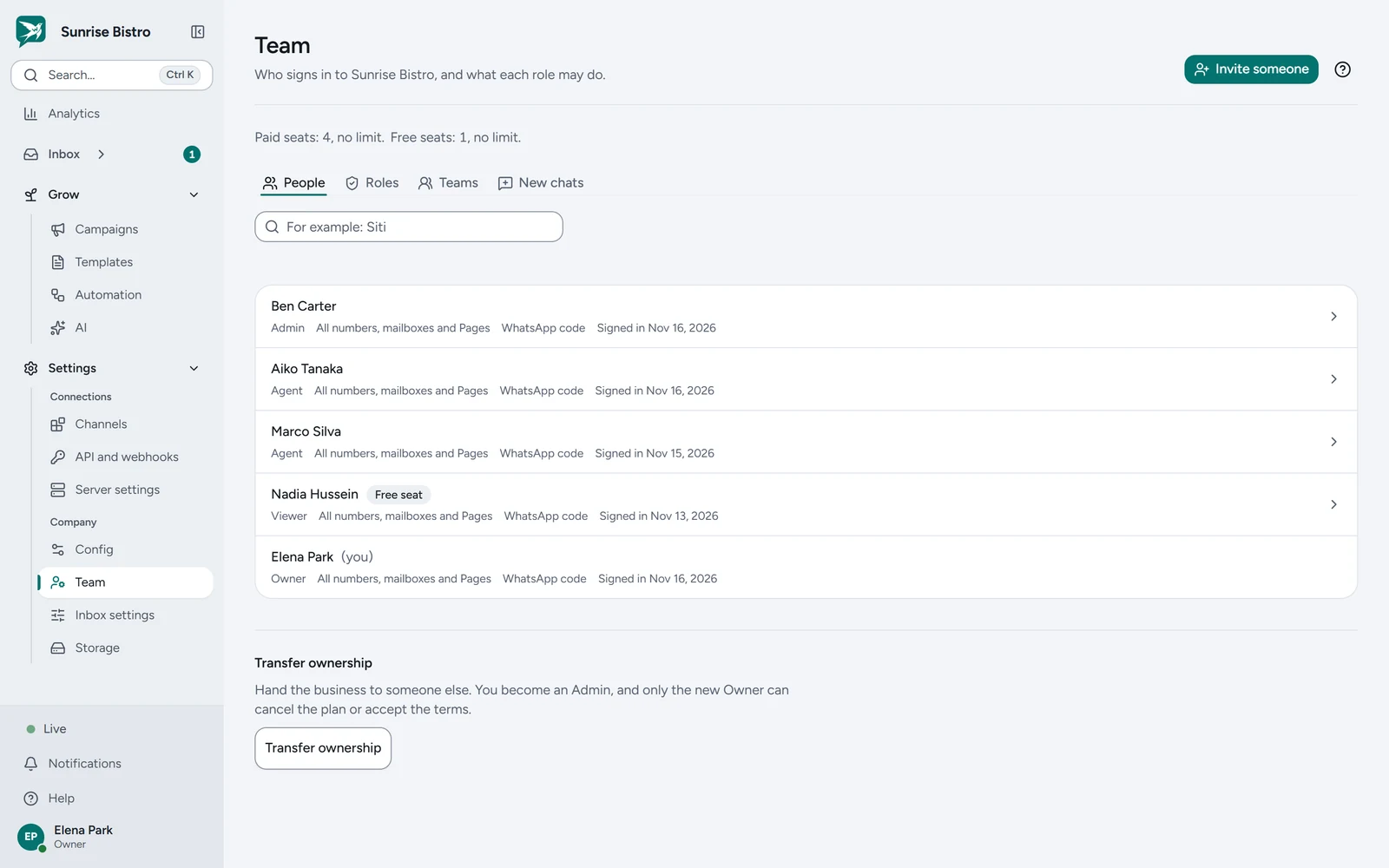
A role is a grid of ticks: one row per page (Chats, Contacts, Flows, Storage and the rest), with View, Add, Edit and Delete, and under More what the page has of its own, such as Reply, Send, Publish or Download. Every business starts with three templates: Admin runs the company settings and the team but not billing or roles, Agent answers chats on their numbers, mailboxes and Pages, and Viewer sees only Analytics and changes nothing. The Owner has every permission.
A role that can only look (View ticks, and Chats: see every chat) uses a Free seat: 3 on every paid plan, none on the trial. Every other role uses a paid seat from your plan, for example 5 on Growth. For more, someone with Billing: pay buys the Extra user add-on on the Billing page, charged monthly by Welkai. It is not sold on the trial or on Solo.
The Teams and New chats tabs share new chats out among the people who reply: see The team inbox. A role with Chats: see every chat also sees chats someone else handles; the Admin template has it, Agent and Viewer do not.
AI teammates have their own place, AI > AI teammates: they answer new chats first on the numbers you choose, then hand the chat to a person. See AI teammates.
Mailboxes and Pages follow the numbers: the Numbers, mailboxes and Pages row adds, looks after and removes them, and an Agent sees only the numbers, mailboxes and Pages they are given.
Invite someone
- On Team, press Invite someone.
- Fill Name, WhatsApp number and Email. They sign in with that number, and their sign-in codes go to it.
- Pick a Role, then the numbers, mailboxes and Pages they use: All of them, also new ones, Only these or None. To let them answer from their personal number, switch on Can link their own WhatsApp and tick who else may read it under Who else can see those chats.
- Under Send the link by, choose WhatsApp, Email or I’ll share it myself, then press Send invite. The link works for 7 days, and it is shown once for you to copy. If your business added an app address on its own domain, the link opens there.
Change what a role may do
On the Roles tab, press a role and tick what it may do. The box by a page’s name ticks everything on that page; the box under a column name ticks that action on every page; the (i) by a page says what each tick allows. Pages sit in groups you can fold, each with a box that ticks the whole group; Everything ticks every box, Find a permission finds a tick by its name, and Fold all closes the groups. A tick that needs another ticks it too: Chats: reply needs Chats: view. Reset to template puts the template’s ticks back. When you press Save, the screens of people with that role change at once. If the save takes something away from people signed in now, you can tick Also sign them out.
Press New role to make your own, such as Supervisor started from Agent. A business can have up to 10 roles. Nobody can give a permission or a number they do not have themselves. Ticking Billing: pay lets that person spend money on your account, so no template has it.
When someone joins, leaves or loses their phone
On the People tab, press a person to change their role, numbers or WhatsApp number (Save changes), send a new invite link (Send a new link: the old one stops working), sign out a browser (Sign out), reset their two-step sign-in when they lost their authenticator app or passkey (Reset two-step sign-in), or Remove them when they leave. Their flows go to the Owner, or to the person picked in the Remove dialog, and keep answering on the same numbers. If they linked their own WhatsApp, the Owner picks Keep the number and its chats or Remove the number in that dialog.
To give someone working hours, press them on People, then Change shift under Shift. Switch on Has a shift, pick their days with up to 2 times each, and press Save shift. Outside their shift they count as Offline: they get no new chats and the dot on their picture reads Off shift. Each person can set their own under My shift in the menu on their picture. A shift follows the business's time zone unless you pick another.
An invite link that ran out can also be renewed by the person: its page offers Send me a new link. If your plan gets fewer seats, the people over it show Locked over the plan until someone with the Billing: pay permission picks who stays on the Billing page.
Transfer ownership
The Owner can hand the business to someone who has every Admin tick (the Admin role, or more) and has signed in at least once. On People, press Transfer ownership, pick the New Owner, type your password and the code sent to your WhatsApp, then type their name. You get the Admin role.
Only the Owner can transfer ownership, cancel the plan and accept the terms; no role can be given these. Nobody else can change or reset the Owner’s own sign-in.